Topics
Introduction to ICT
Creating Textual Communication
- Purpose of Creating Textual Documents
- Word Processor Basics
- Keyboard Functions
- Creating and Formatting a Document
- Saving and Opening Documents
- Text Formatting
- Error Detection Tools
- Cut, Copy and Paste
- Bullets and Numbering
- Tables in LibreOffice
- Inserting Images in LibreOffice
- Headers and Footers
- Print Preview and Printing
- Protecting Documents
Creating Visual Communication
Creating Audio-Video Communication
Presenting Ideas
Getting Connected: Internet
Safety and Security in the Cyber World
Fun with Logic
- Saving a New Document
- Opening a New Document
Saving a New Document
A document must be saved with a proper name so it can be opened again for viewing or editing. Unsaved documents may be lost if the application is closed unexpectedly. Saving ensures that all changes made are permanently stored. To close the file click File → Close option To close the word processor (Writer), you may click the Close button  on the top-left corner of the screen.
Steps to Save a New Document in LibreOffice Tool :
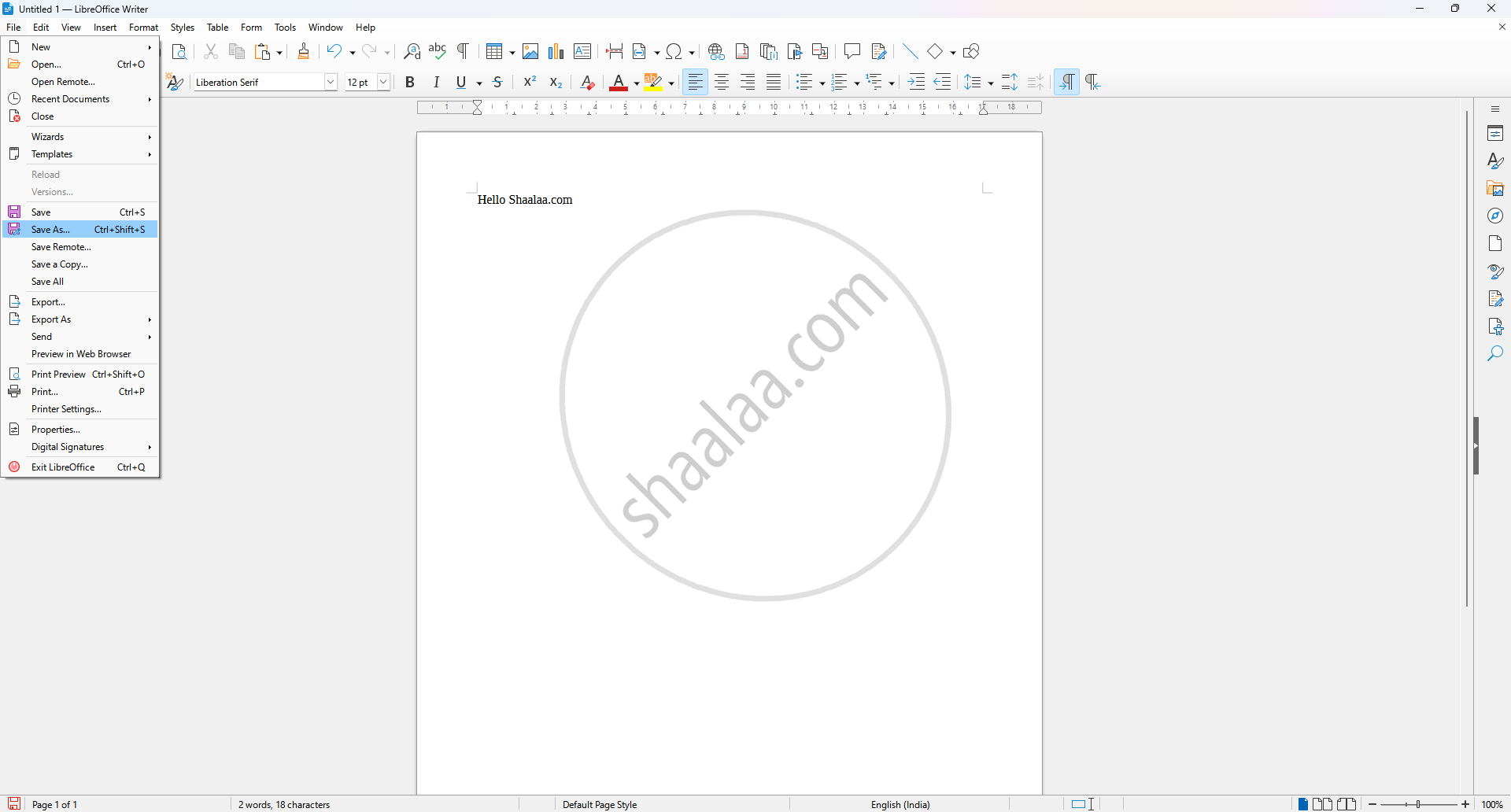
Step 1 : Go to Menu Option Click on File → Save as to open the save dialog.
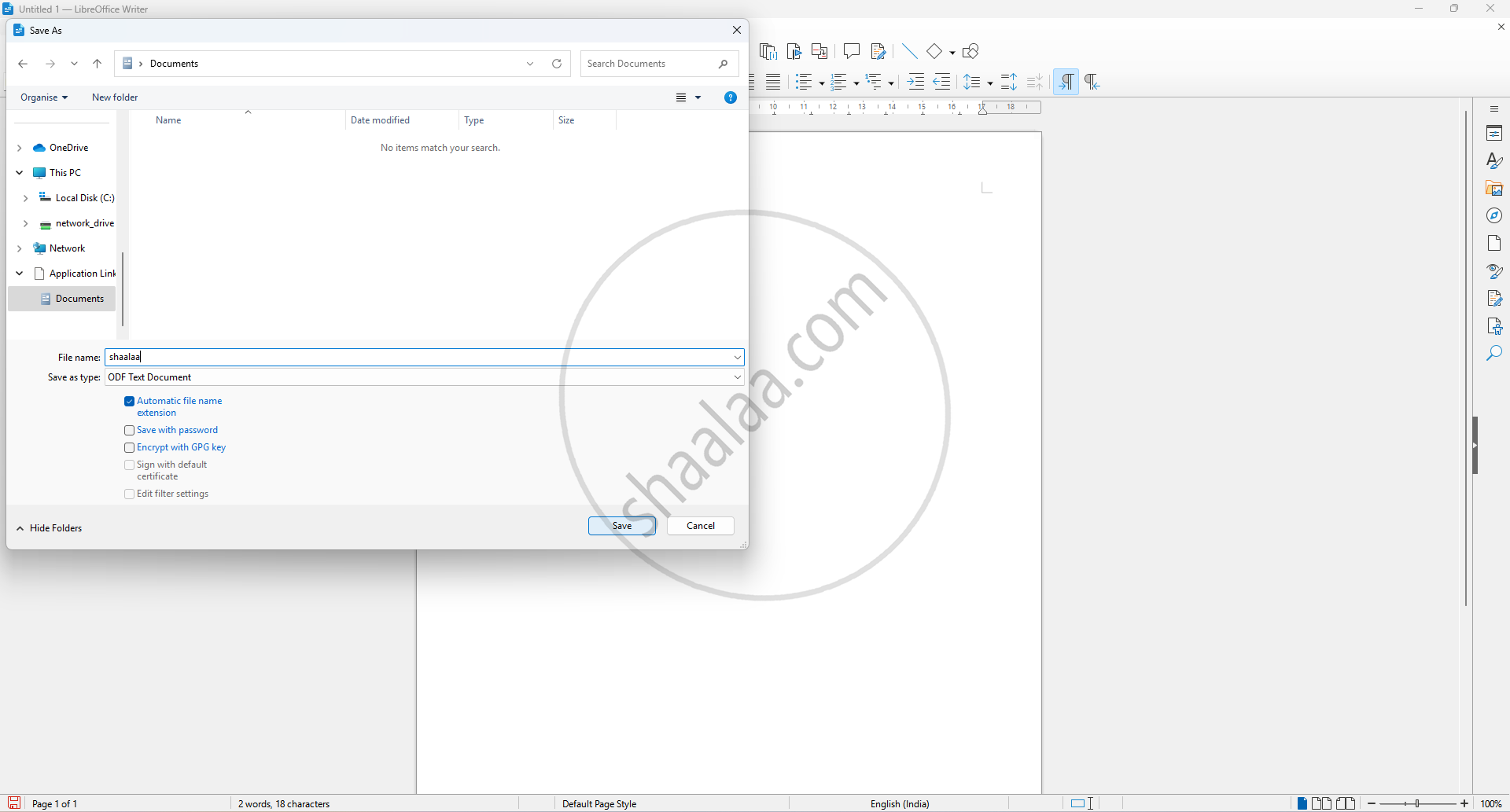
Step 2: Enter file name and choose document format.
Step 3 : Click the "Save" button. The document will be saved in a file location
Commonly Used File Formats
| Format | Description |
|---|---|
| .odt | ODF Text Document (default format) |
| .doc | MS Word 97/2000/XP |
| .docx | MS Word 2007/2013 |
| .txt | Plain Text |
| .html | HTML Document |
| Portable Document Format |
Opening a Document
Opening a document means accessing a previously saved file so that its contents can be viewed, read, or edited using a software application such as a word processor.
Steps to Open a Document from a Storage Location in LibreOffice Tool :
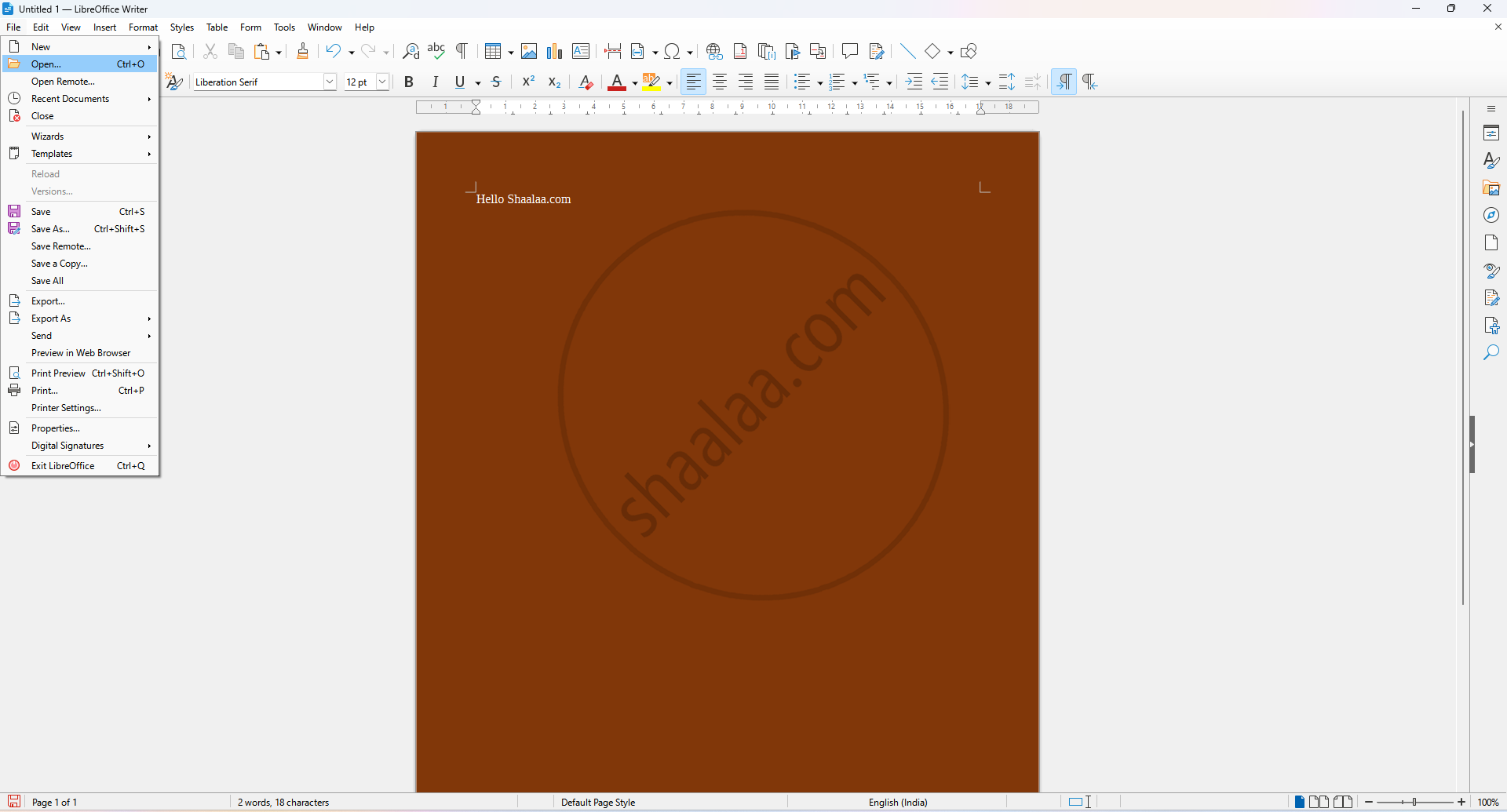
Step 1: Click on the File option from the menu bar.
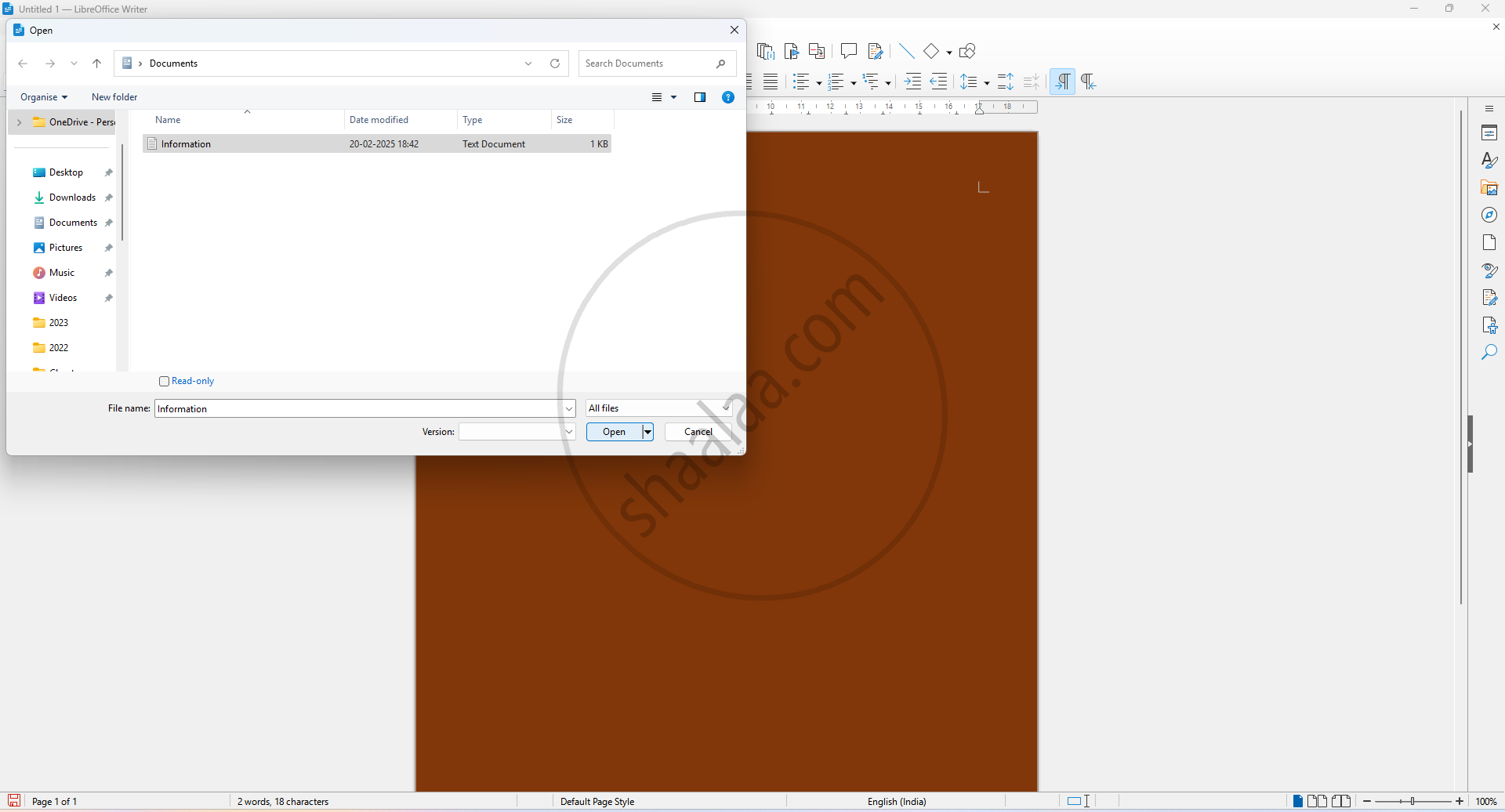
Step 2: Then, click on Open (Ctrl O); the storage location will open; choose the file from the folders.
Step 3: After choosing the folder, click on the file, e.g., Information, and click on the Open button; the file or document will open.
You can also perform a task using keys from the keyboard. These are called shortcut keys. Some of the shortcut keys are listed below:
Opening a new document Ctrl + N
Saving a document Ctrl + S
Opening a document Ctrl + O
