Topics
Introduction to ICT
Creating Textual Communication
- Purpose of Creating Textual Documents
- Word Processor Basics
- Keyboard Functions
- Creating and Formatting a Document
- Saving and Opening Documents
- Text Formatting
- Error Detection Tools
- Cut, Copy and Paste
- Bullets and Numbering
- Tables in LibreOffice
- Inserting Images in LibreOffice
- Headers and Footers
- Print Preview and Printing
- Protecting Documents
Creating Visual Communication
Creating Audio-Video Communication
Presenting Ideas
Getting Connected: Internet
Safety and Security in the Cyber World
Fun with Logic
Removing Unwanted Elements
1. GIMP Features:
- Used to copy from an image or pattern using the current brush.
- Helps in repairing images with problem areas.
- Works by "painting over" bad areas using pixel data from good areas.
- Functionality is similar to the Format Painter tool in a text editor.
2. File Formats:
The default file format of GIMP is .xcf. These files are heavy and have low resolution. There are various other file formats into which these .xcf files can be exported.
- JPEG (Joint Photographic Experts Group): A widely-used compressed image format that balances good quality with small file size
- PNG (Portable Network Graphics): A high-quality image format with lossless compression and support for transparency.
- TIFF (Tagged Image File Format): A high-quality, bulky image format used in professional image processing and printing.
Step 1: Go to File → Export. The 'Export Image JPEG' window will appear. Image quality can be adjusted in this window.
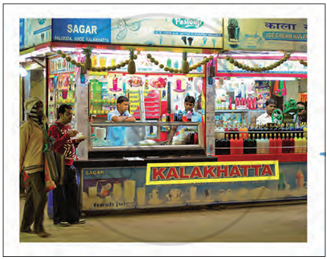
Image with unwanted
Step 2: Go to Tools → Paint Tools → Clone. Or select it by clicking in the Toolbox.
Step 3: Opacity Increase it if it is less than 100 to make cloning appear natural.
Step 4: Change the size of the clone brush by moving the scale button.
Step 5: If Alignment is set to None, Aligned, or Fixed in tool options, then The first point clicked becomes the origin for cloning
Step 6: The image data from this origin is used when painting begins.
Step 7: In source-selection mode, the cursor changes to a reticle cross symbol.
Step 8: Multiple clone sources can be selected by clicking on different areas using the Ctrl key.
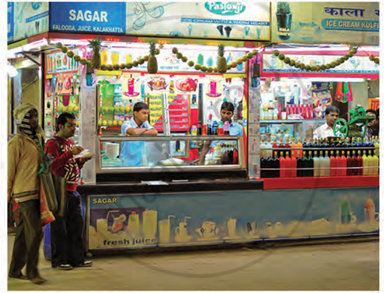
Image without unwanted text
