Topics
Introduction to ICT
Creating Textual Communication
- Purpose of Creating Textual Documents
- Word Processor Basics
- Keyboard Functions
- Creating and Formatting a Document
- Saving and Opening Documents
- Text Formatting
- Error Detection Tools
- Cut, Copy and Paste
- Bullets and Numbering
- Tables in LibreOffice
- Inserting Images in LibreOffice
- Headers and Footers
- Print Preview and Printing
- Protecting Documents
Creating Visual Communication
Creating Audio-Video Communication
Presenting Ideas
Getting Connected: Internet
Safety and Security in the Cyber World
Fun with Logic
- Grammar and Spell Checker
- Find and Replace
Grammar and Spell Checker
- In a word processor, a red wavy line appears under a word to indicate a spelling mistake, while a green wavy line signifies a grammatical error in the text.
- Instead of manually correcting mistakes by placing the cursor and retyping the words, users can use the Spelling and Grammar Check feature from the Tool menu, which automatically identifies and suggests corrections for spelling and grammatical errors.

Step 1: Position the cursor at the beginning of the document to start checking from the top. Click on: Tool → Spelling and Grammar.
Step 2: Spelling and Grammar Dialog Box:
- Text language : Sets the language users want For example: English (India)
- Not in Dictionary: The misspelled word (e.g., "vised") is displayed in the preview area.
- Suggestion Box: Shows a list of correct spellings (e.g., "visited," "listed," "misted," "fisted").
Step 3: User Options in the Dialogue:
- Ignore Once : Click to skip the current suggestion without making any changes
- Ignore All : Skips all instances of the highlighted word without making any changes.
- Add to Dictionary: Adds the word to the dictionary if it is correct but not recognised (e.g., proper names or local terms).
- Correct: Replaces the incorrect word with the selected suggestion.
- Correct All: Replaces all occurrences of the incorrect word throughout the document.
- Always Correct: Automatically replaces the incorrect word with the suggested correction whenever it appears in the document.
Shortcut Key for Spelling & Grammar F7
Find and Replace
Sometimes, the spell checker may underline correct words (like ‘Pragati Maidan’) with a red wavy line; in such cases, the word can be added to the dictionary using the ‘Add to Dictionary’ option. Conversely, real but contextually incorrect words (like ‘fare’ instead of ‘fair’) may not be underlined, as they are spelled correctly, highlighting the importance of reviewing context even if no error is flagged.
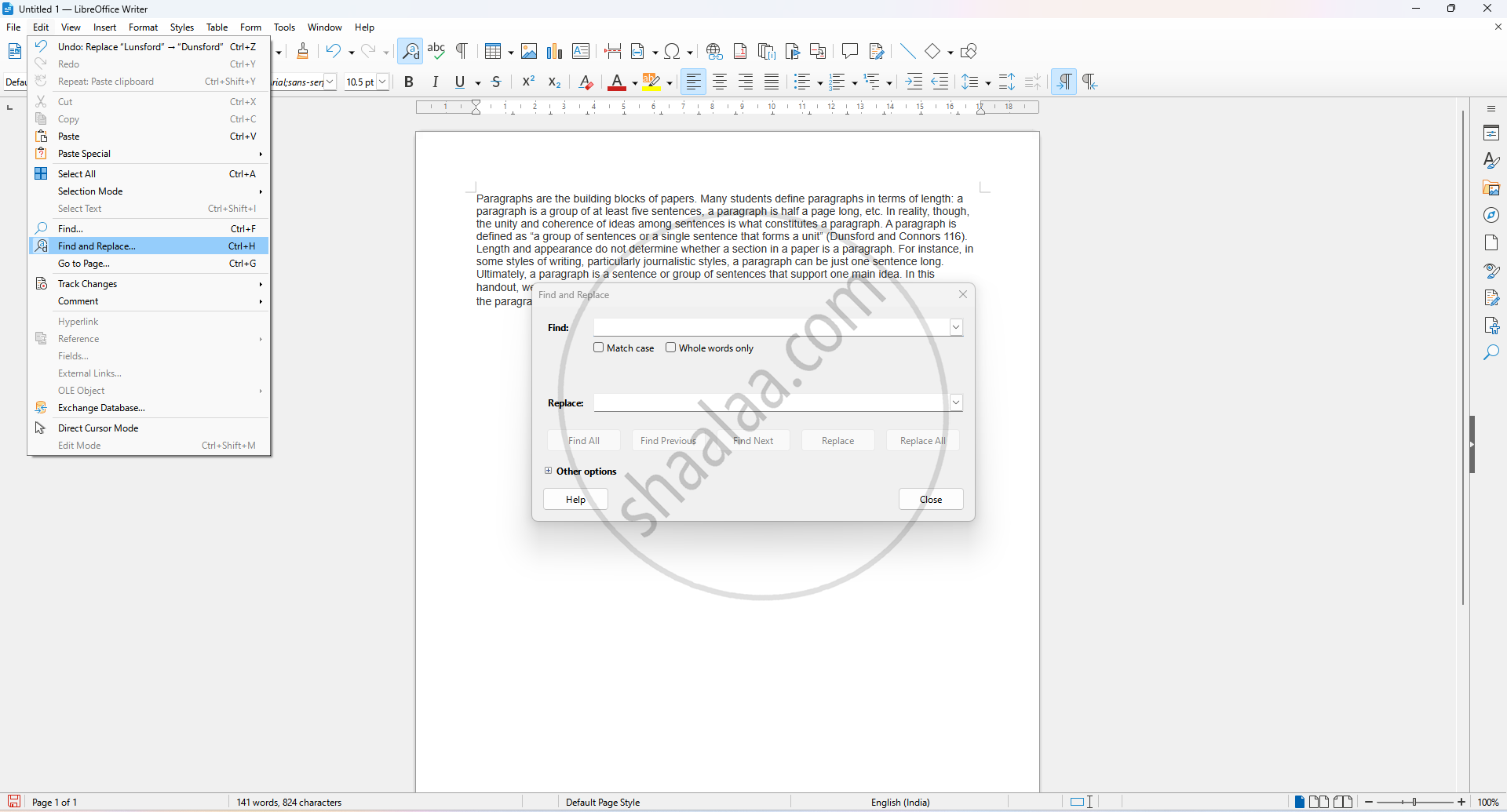
Click Edit → Find & Replace.
Step 1: Text Fields
- Find: Type the word or phrase you want to search for in the document.
- Replace: Type the word or phrase you want to use as a replacement.
Step 2: Find All: Searches the entire document and highlights all instances of the searched word.
Step 3: Find Previous : Locates and highlights the previous occurrence of the searched word.
Step 4: Find Next: Moves to the next occurrence of the word in the document.
Step 5: Replace : Replaces the currently selected occurrence of the word with the new one entered in the Replace field.
Step 6: Replace All : Automatically replaces all occurrences of the searched word with the new word throughout the document.
Shortcut key for Find and Replace Ctrl + H.
