Topics
Introduction to ICT
Creating Textual Communication
- Purpose of Creating Textual Documents
- Word Processor Basics
- Keyboard Functions
- Creating and Formatting a Document
- Saving and Opening Documents
- Text Formatting
- Error Detection Tools
- Cut, Copy and Paste
- Bullets and Numbering
- Tables in LibreOffice
- Inserting Images in LibreOffice
- Headers and Footers
- Print Preview and Printing
- Protecting Documents
Creating Visual Communication
Creating Audio-Video Communication
Presenting Ideas
Getting Connected: Internet
Safety and Security in the Cyber World
Fun with Logic
CBSE: Class 9
Email Creation and Sending Messages
1) Email (Electronic Mail)
- Email is a method of communicating and sharing information over the Internet.
- It allows users to send and receive messages anytime, anywhere using Internet-enabled devices like computers, laptops, and smartphones.
- Apart from searching for information, email is an essential tool for online communication.
2) Creating an Email Account
To send or receive emails, users must create an account with an email service provider. The steps involved are:
| Email Service Providers | URL |
| Gmail | gmail.com |
| Yahoo mail | login.yahoo.com |
| mail.com | |
| Outlook | outlook.com |
- Open a web browser and type the URL of an email service provider (e.g., gmail.com, yahoo.com).
- Click on Create Account → Sign Up or Register.
- Choose a unique username. If it is already taken, the provider will suggest alternatives.
- Set a strong password that includes: Uppercase and lowercase letters, Numbers, Special symbols.
- Fill in the required personal details: First name, last name, date of birth, gender, etc.
- Carefully read and agree to the terms and conditions before proceeding.
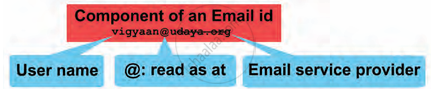
- The email address will be in the
format: [email protected]
e.g., [email protected], [email protected].
3) Checklist for a Strong Password
When setting a password, make sure it meets the following criteria:
- Contains a mix of letters (both cases), numbers, and symbols.
- Is at least 6 to 8 characters long.
- Is unique for each important account.
- Change passwords regularly for safety.
- Example of a strong password: 13Hlt@8L.
4) Sending an Email
Once the email account is created, follow these steps to send an email and share content:
- Log in to your email account.
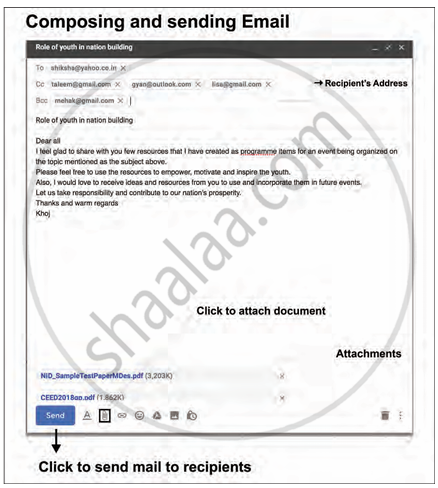
- Click on the Compose or Write button.
- Enter the recipient’s email ID in the "To" field.
- Enter a subject that summarises the purpose of the message.
- Type the main content/message in the message body.
- Attach documents or files if necessary using the attachment icon.
- Click the Send button to deliver the email.
5) Components of an Email Message
- To: Enter the email address of the person you are directly sending the message to.
- Subject: A brief title describing the purpose or topic of the email.
- Cc (Carbon Copy): To send a copy of the email to other recipients (visible to all).
- Bcc (Blind Carbon Copy): To send a copy of the email without showing those addresses to others.
- Attachment Icon
 : Used to insert files or documents in the email.
 - Send: The button that sends the email after composing it.