Topics
Introduction to ICT
Creating Textual Communication
- Purpose of Creating Textual Documents
- Word Processor Basics
- Keyboard Functions
- Creating and Formatting a Document
- Saving and Opening Documents
- Text Formatting
- Error Detection Tools
- Cut, Copy and Paste
- Bullets and Numbering
- Tables in LibreOffice
- Inserting Images in LibreOffice
- Headers and Footers
- Print Preview and Printing
- Protecting Documents
Creating Visual Communication
Creating Audio-Video Communication
Presenting Ideas
Getting Connected: Internet
Safety and Security in the Cyber World
Fun with Logic
- Information Retrieval
- Search Engines
- Downloading and Uploading Files from/to Remote Sites
Search Engines
A search engine is a software system designed to carry out web searches, enabling users to find information on the internet Search engines help users discover websites, documents, images, videos, and other online content even if they don’t know the specific URL They function by crawling the web, indexing content, and retrieving data in response to keywords entered by users.
The following are a few popular search engines:
| Name | Address |
| google.com | |
| Bing | bing.com |
| Yahoo | yahoo.com |
| Ask | ask.com |
| DuckDuck | duckduckgo.com |
1) Using Search Engines :
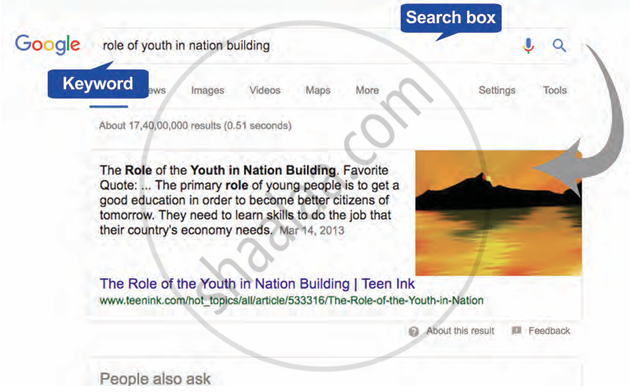
Search engines like Google, Bing, and Yahoo help you find information on the internet. The user can type a keyword or phrase into a search box, and the search engine shows a list of related webpages. This process is essential for researching topics, finding media, or exploring ideas online.
2) Pre-search Questions :
Before starting a search, it’s important to plan your approach. Ask yourself:
-
What type of information do I need? (For example, facts for a report, ideas for a project, or someone’s opinion on a topic.)
-
What format am I looking for? (Text, images, or videos.) These questions help narrow your search and give better, more focused results.
3) Selecting Keywords :
A keyword is a specific word or short phrase you enter into the search box. Good keywords are:
-
Precise and to the point.
-
Relevant to your question or topic. Avoid using common or vague words like "the", "of", or "apply" because they don’t help narrow down the search and may return too many irrelevant results.
4) Filtering Search Results
After searching, the default results page shows a mix of everything under the "All" category. But you can filter results by clicking on:
- Images : to view only pictures.
- Videos : to view only videos.
- Maps : to view location-based results such as addresses, directions, and landmarks.
- News : to view recent articles and updates from news websites.
These options help you sort information by media type, which saves time and effort.

5) Plug-in for Multimedia Resources
A plug-in is a small software tool that adds extra features to your web browser. Some multimedia content like certain animations, interactive activities, or videos may need a plug-in to run.
- When a site asks you to install a plug-in, you can click the link provided and follow the steps to install it.
- Once installed, you’ll be able to view or interact with the content properly.
6) Site Web Browsers
Whenever you use information or media (like images, videos, or text) from the internet, User must give credit to the original source. This is called citing the reference. It shows honesty in your work and respects copyright laws.
