Topics
Introduction to ICT
Creating Textual Communication
- Purpose of Creating Textual Documents
- Word Processor Basics
- Keyboard Functions
- Creating and Formatting a Document
- Saving and Opening Documents
- Text Formatting
- Error Detection Tools
- Cut, Copy and Paste
- Bullets and Numbering
- Tables in LibreOffice
- Inserting Images in LibreOffice
- Headers and Footers
- Print Preview and Printing
- Protecting Documents
Creating Visual Communication
Creating Audio-Video Communication
Presenting Ideas
Getting Connected: Internet
Safety and Security in the Cyber World
Fun with Logic
Saving and Exporting Video Project
1. Project Preview
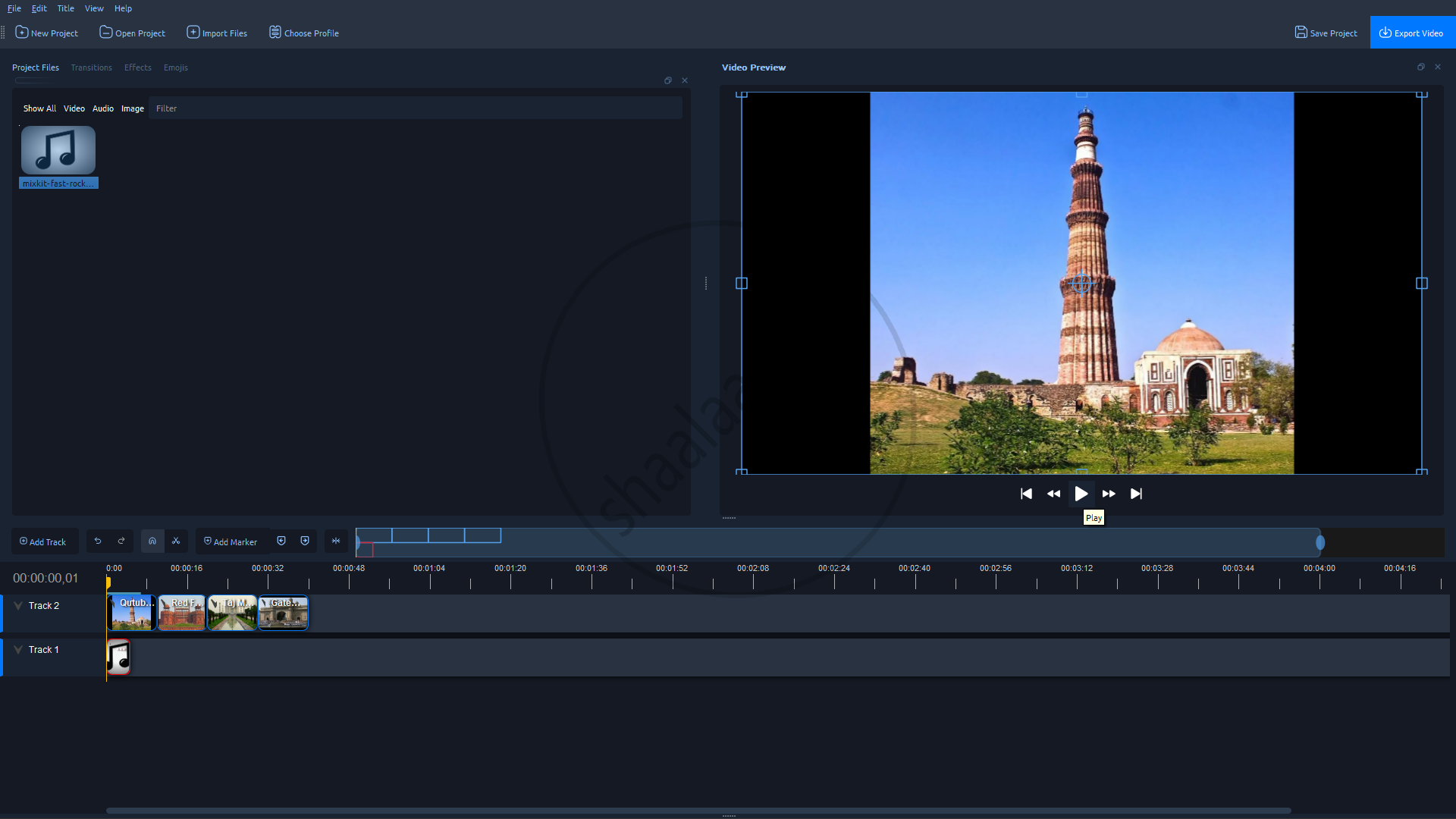
Step 1 : Look at the Video Preview window on the right side of OpenShot.
Step 2 : Click on the "Play" button (white triangle icon) below the preview screen.
2. Save the Project
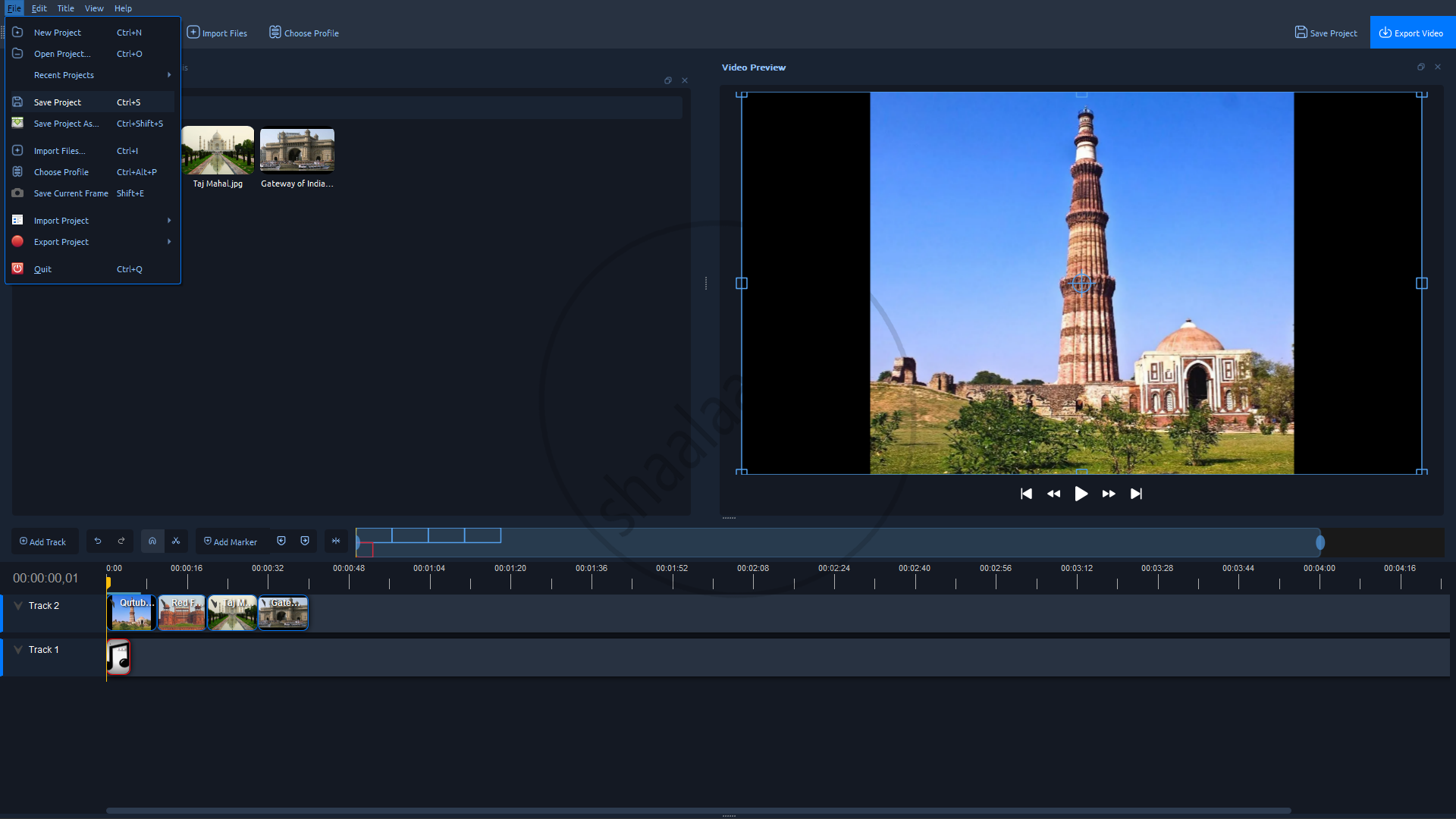
Step 1 : Click on the "File" menu at the top-left of the OpenShot window.
Step 2 : From the drop-down list, click on "Save Project."
3. Export the project

Click on File → Export the project. Then fill the details according to the requirement
Step 1: Choose a name for your video project in the "File Name" box.
Step 2 : Choose the location where you want to save the video (e.g., Desktop) in the "Folder path" box
Step 3 : In the "Profile" section, select "All Formats."
Step 4 : Set the following options:
- Target: Leave as default (OGG is selected).
- Video Profile: Choose "HD 720p 29.97 fps" (good quality and smooth).
- Quality: Select "Med" (medium quality).
Step 5: Click the "Export Video" button at the bottom right.
