Topics
Introduction to ICT
Creating Textual Communication
- Purpose of Creating Textual Documents
- Word Processor Basics
- Keyboard Functions
- Creating and Formatting a Document
- Saving and Opening Documents
- Text Formatting
- Error Detection Tools
- Cut, Copy and Paste
- Bullets and Numbering
- Tables in LibreOffice
- Inserting Images in LibreOffice
- Headers and Footers
- Print Preview and Printing
- Protecting Documents
Creating Visual Communication
Creating Audio-Video Communication
Presenting Ideas
Getting Connected: Internet
Safety and Security in the Cyber World
Fun with Logic
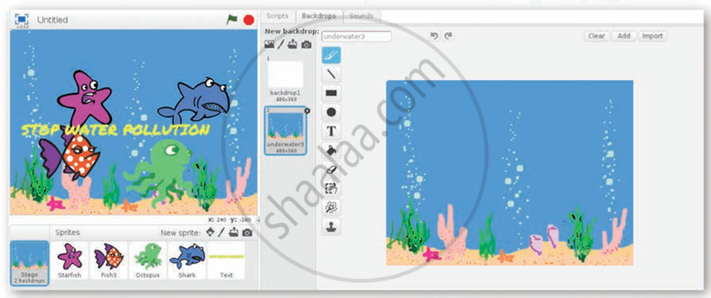
Working with Sprites and Backdrops
1) Deleting a Sprite

Step 1: Right-click on the sprite to be deleted.
Step 2: Click delete option from the pop up menu.
2) Adding Text Sprite
Step 1: Click Choose Sprite from Library to open the sprite library.

Step 2: Select the text sprite; go to the Costume tab to add your desired text.

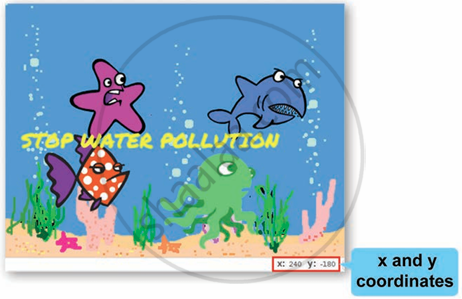
Step 3: To move a sprite, use X and Y coordinates on the stage (center is (0, 0); max/min are 240 and -180).
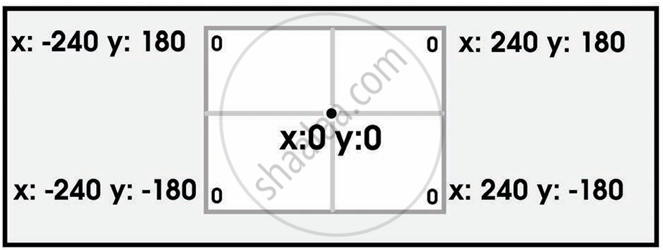
Step 4: As you move the mouse on the stage, coordinates update at the bottom-right.
3) Backdrop Change:
Step 1: Click the backup → Choose Backdrop from Library button located at the bottom-right corner of the stage area. This opens a collection of backdrop themes.
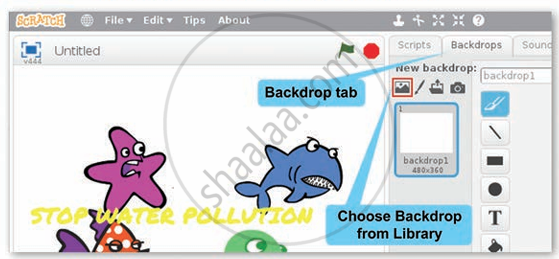
Step 2: Select Underwater theme and the desired backdrop (Underwater 3) from the given palette of backdrops.
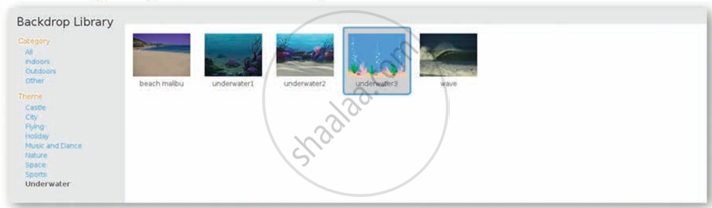
Step 3: Click the OK button. The selected backdrop will be added to your project.