Topics
Introduction to ICT
Creating Textual Communication
- Purpose of Creating Textual Documents
- Word Processor Basics
- Keyboard Functions
- Creating and Formatting a Document
- Saving and Opening Documents
- Text Formatting
- Error Detection Tools
- Cut, Copy and Paste
- Bullets and Numbering
- Tables in LibreOffice
- Inserting Images in LibreOffice
- Headers and Footers
- Print Preview and Printing
- Protecting Documents
Creating Visual Communication
Creating Audio-Video Communication
Presenting Ideas
Getting Connected: Internet
Safety and Security in the Cyber World
Fun with Logic
CBSE: Class 9
Cut, Copy and Paste
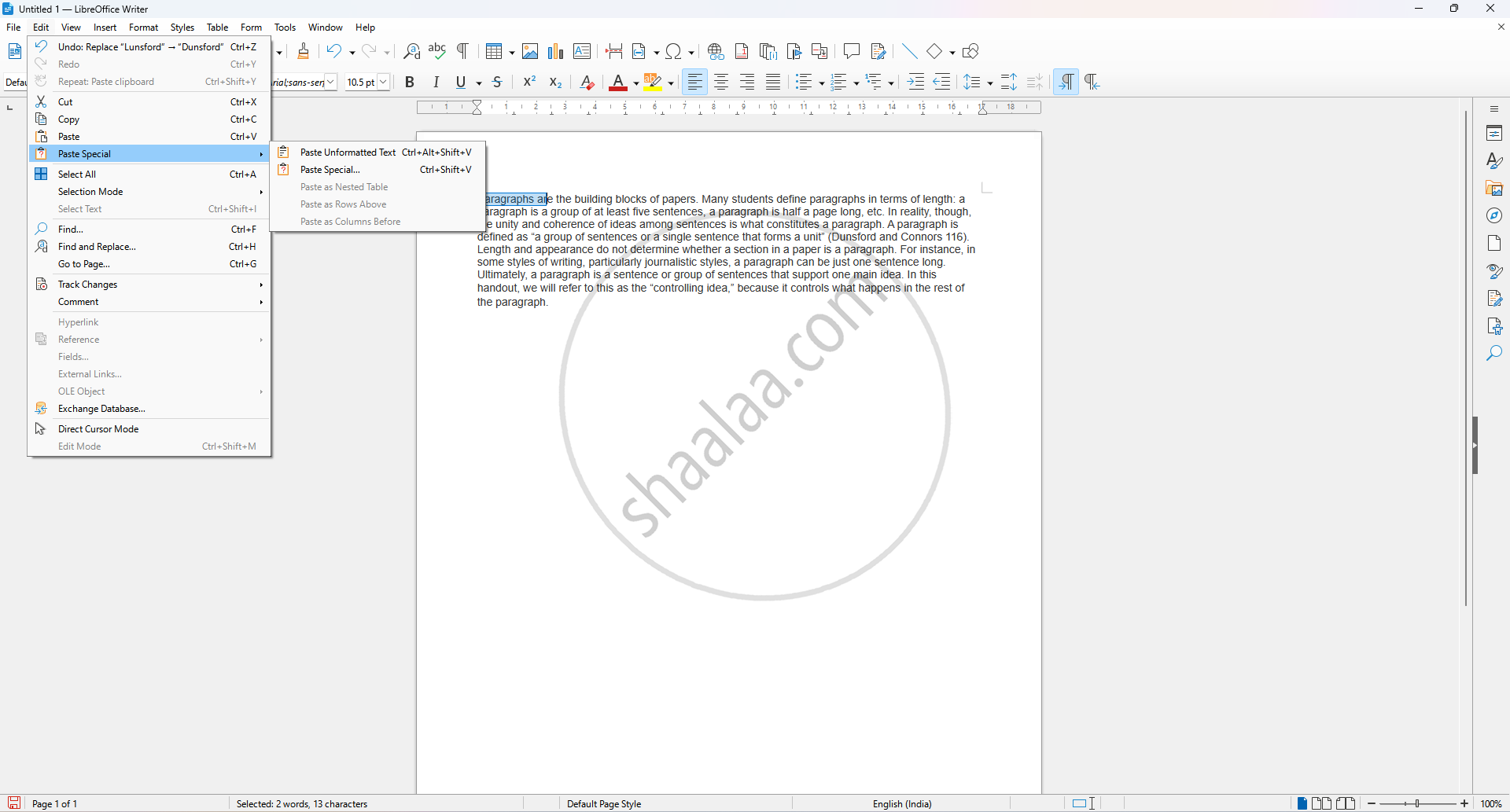
1. Moving Text (Cut and Paste):
Step 1: Select the text you want to move.
Step 2: Click Edit → Cut (Ctrl + X) This removes the text from its original position.
Step 3: Place the cursor at the new desired location.
Step 4: Click Edit → Paste (Ctrl + V) This pastes the text at the new location.
2. Duplicating Text (Copy and Paste):
Step 1: Select the text you want to duplicate.
Step 2: Click Edit → Copy (Ctrl + C) This keeps the original text and copies it to the clipboard.
Step 3: Place the cursor at the location where the duplicate should appear.
Step 4: Click Edit → Paste (Ctrl + V) This pastes the copied text at the desired position.
Related QuestionsVIEW ALL [5]
Match the following:
| A | B |
| (a) Cut, Copy and Paste | (1) Absolute Cell |
| (b) Cell pointer | (2) Status bar |
| (c) Selection Mode | (3) Standard Toolbar |
| (d) $A5$ | (4) Active cell |
