Topics
Introduction to ICT
Creating Textual Communication
- Purpose of Creating Textual Documents
- Word Processor Basics
- Keyboard Functions
- Creating and Formatting a Document
- Saving and Opening Documents
- Text Formatting
- Error Detection Tools
- Cut, Copy and Paste
- Bullets and Numbering
- Tables in LibreOffice
- Inserting Images in LibreOffice
- Headers and Footers
- Print Preview and Printing
- Protecting Documents
Creating Visual Communication
Creating Audio-Video Communication
Presenting Ideas
Getting Connected: Internet
Safety and Security in the Cyber World
Fun with Logic
Protecting Documents
PDF stands for Portable Document Format. It is a file format developed by Adobe Systems that allows documents to be presented in a manner independent of application software, hardware, or operating systems. Editable formats (like .odt and .docx) allow anyone to make changes. To prevent editing, documents should be saved in a non-editable format.
Steps for Converting a Document to PDF Format :
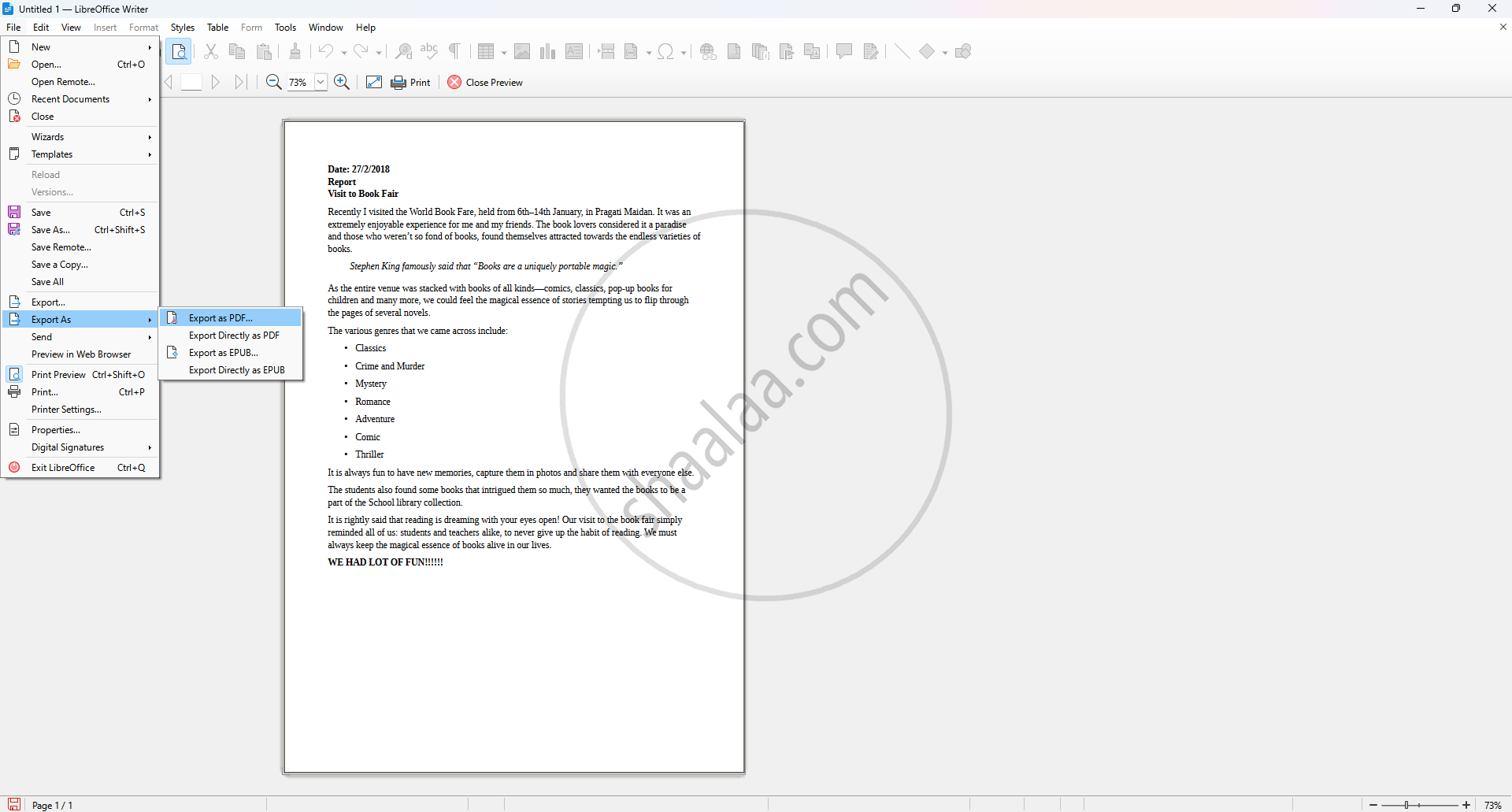
Step 1: Click File → Export as PDF, and it allows user to configure how users document will be saved as a PDF.
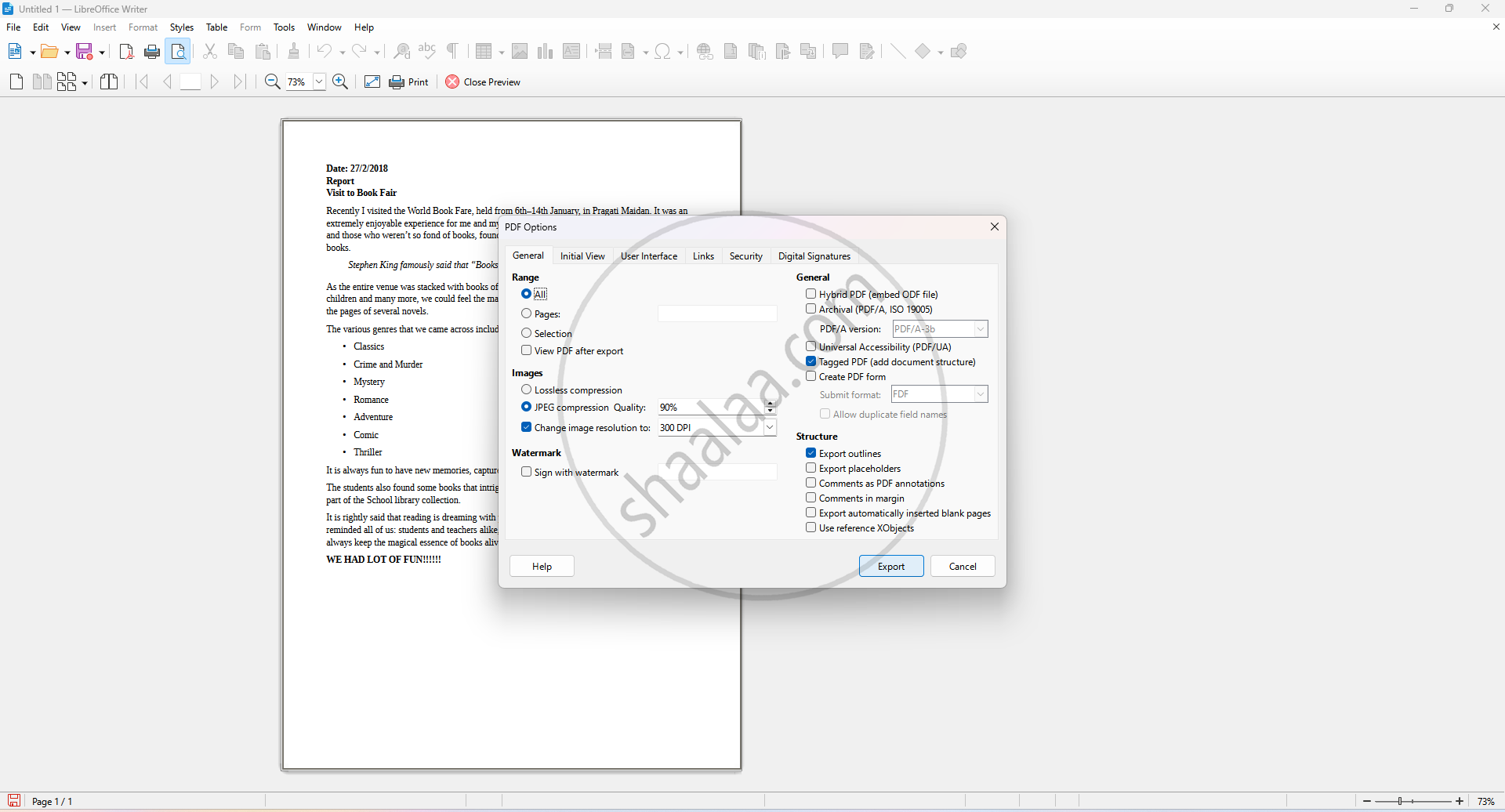
Following Options of Export as PDF
1. Range:
- All: Exports the entire document.
- Pages: Export specific pages by entering page numbers.
- Selection: Only exports currently selected content.
2. Images :
- Lossless compression: Keeps image quality intact but results in a larger file size.
- JPEG compression: Compresses images to reduce file size (with adjustable quality).
- Reduce image resolution: Option to set resolution (e.g., 300 DPI) to shrink file size.
3. Watermark : Allows you to add a watermark to the PDF by entering custom text (optional).
4. General Options :
- Hybrid PDF: Saves both PDF and editable source in one file.
- Archive PDF/A-1a: Creates a long-term archivable PDF format.
- Tagged PDF: Adds structure for accessibility and screen readers.
- Create PDF form: Makes interactive form fields in the PDF.
- Submit format: Sets how form data is submitted (e.g., FDF).
- Allow duplicate field names: Let multiple form fields share the same name.
- Export bookmarks: Includes document bookmarks in the PDF.
- Export placeholders: Adds placeholder text for form fields.
- Export comments: Includes user comments from the document.
- Export automatically inserted blank pages: Keep the layout as in the printed version.
- View PDF after export: Opens the PDF immediately after saving.
- Use reference XObjects: Optimises image reuse for smaller file size.
Once all desired options are selected, click Export to save the document as a PDF file. Click Cancel to exit without exporting.
