Topics
Introduction to ICT
Creating Textual Communication
- Purpose of Creating Textual Documents
- Word Processor Basics
- Keyboard Functions
- Creating and Formatting a Document
- Saving and Opening Documents
- Text Formatting
- Error Detection Tools
- Cut, Copy and Paste
- Bullets and Numbering
- Tables in LibreOffice
- Inserting Images in LibreOffice
- Headers and Footers
- Print Preview and Printing
- Protecting Documents
Creating Visual Communication
Creating Audio-Video Communication
Presenting Ideas
Getting Connected: Internet
Safety and Security in the Cyber World
Fun with Logic
CBSE: Class 9
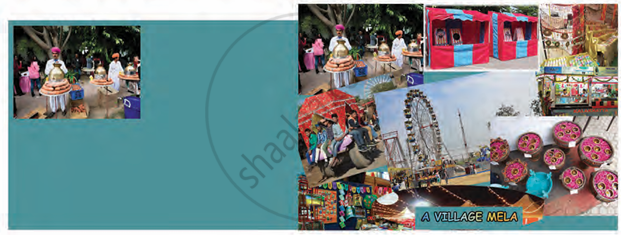
Creating a Collage
Step 1: Create a new canvas Set Width: 1080, Height: 760.
Step 2: Fill the background layer with a colour of your choice.
Step 3: Click on the Foreground and Background Colour Tool in the Toolbox.
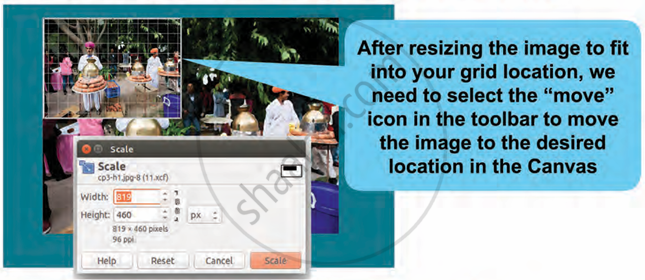
Step 4: Add an image using File → Open as Layers. The image is loaded on the canvas.
Step 5: Resize the image using Tools → Transform Tool → Scale.
Step 6: Move the image using Tools → Transform Tool → Move.
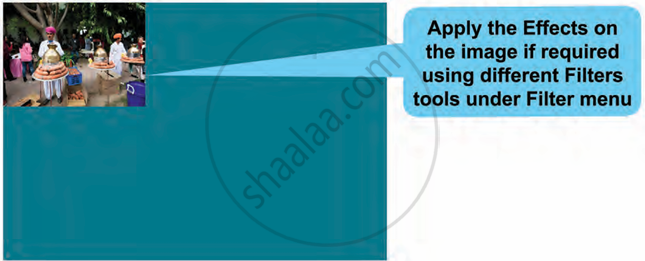
Step 7: Add more images similarly using Open as Layers on the canvas.
Step 8: In the Layer panel:
- Click on the layer to resize and move the image.
- Use the Scale Tool and Move Tool to adjust the image.
- Select the layer of the image you want to work on.
- Right-click the layer, choose "Scale Layer," and resize the image to fit in the grid.