Topics
Introduction to ICT
Creating Textual Communication
- Purpose of Creating Textual Documents
- Word Processor Basics
- Keyboard Functions
- Creating and Formatting a Document
- Saving and Opening Documents
- Text Formatting
- Error Detection Tools
- Cut, Copy and Paste
- Bullets and Numbering
- Tables in LibreOffice
- Inserting Images in LibreOffice
- Headers and Footers
- Print Preview and Printing
- Protecting Documents
Creating Visual Communication
Creating Audio-Video Communication
Presenting Ideas
Getting Connected: Internet
Safety and Security in the Cyber World
Fun with Logic
CBSE: Class 9
Headers and Footers
Header : A header is the space at the top of a page in a document where you can add information like Title of the document, Your name, Date and Page Title.
Footer : A footer is the space at the bottom of a page where you can add things like Page numbers, file names, website links and Copyright info.
Steps to insert a header in a document:
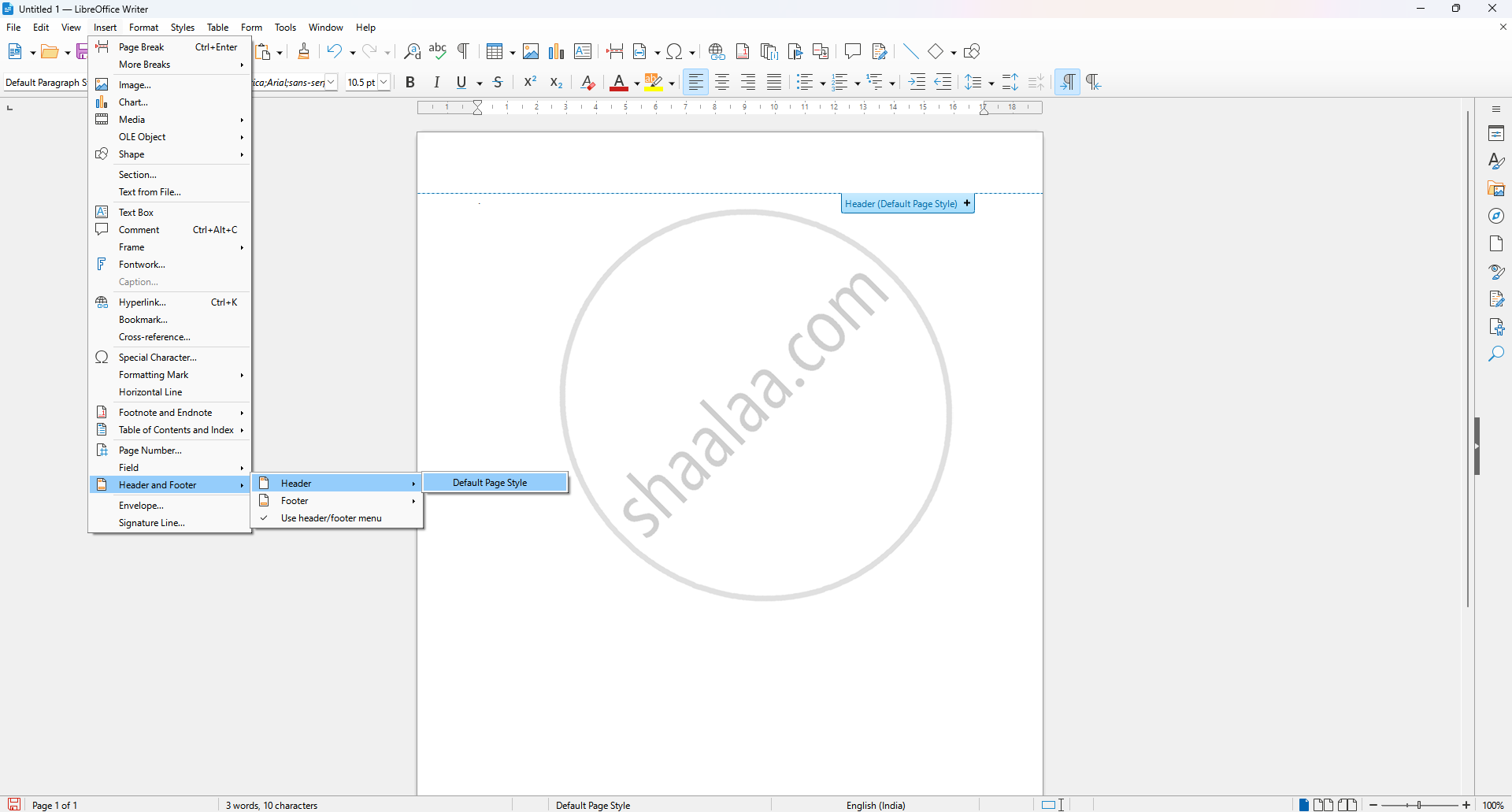
Step 1: Launch LibreOffice Writer on your computer. Open a new or existing document.
Step 2: Go to the 'Insert' Menu On the top menu bar, click on Insert.
Step 3: Select 'Header and Footer.' From the dropdown menu, hover your mouse over Header and Footer.
Step 4: Choose Header → Default Style.
- Click on Header in the side menu.
- Then select Default Style.
- A header area will now appear at the top of your document.
Step to Insert a Footer in a Document :

Step 1: Open the Footer Section:
- Go to the top menu and click Insert → Header and Footer → Footer → All.
- This action activates the footer, and the cursor will automatically move to the footer area.
Step 2: Insert Page Number:
- Go back to the top menu and click Insert → Page Number.
- This will insert a page number in the footer of your document, usually starting from page 1.
