Topics
Introduction to ICT
Creating Textual Communication
- Purpose of Creating Textual Documents
- Word Processor Basics
- Keyboard Functions
- Creating and Formatting a Document
- Saving and Opening Documents
- Text Formatting
- Error Detection Tools
- Cut, Copy and Paste
- Bullets and Numbering
- Tables in LibreOffice
- Inserting Images in LibreOffice
- Headers and Footers
- Print Preview and Printing
- Protecting Documents
Creating Visual Communication
Creating Audio-Video Communication
Presenting Ideas
Getting Connected: Internet
Safety and Security in the Cyber World
Fun with Logic
- Creating a New Document
- Formatting a New Document
Creating a New Document
It refers to the process of starting a fresh digital file using a word processing program like Microsoft Word, Google Docs, or any similar tool.
Step to Open a New Document in LibreOffice Tool:
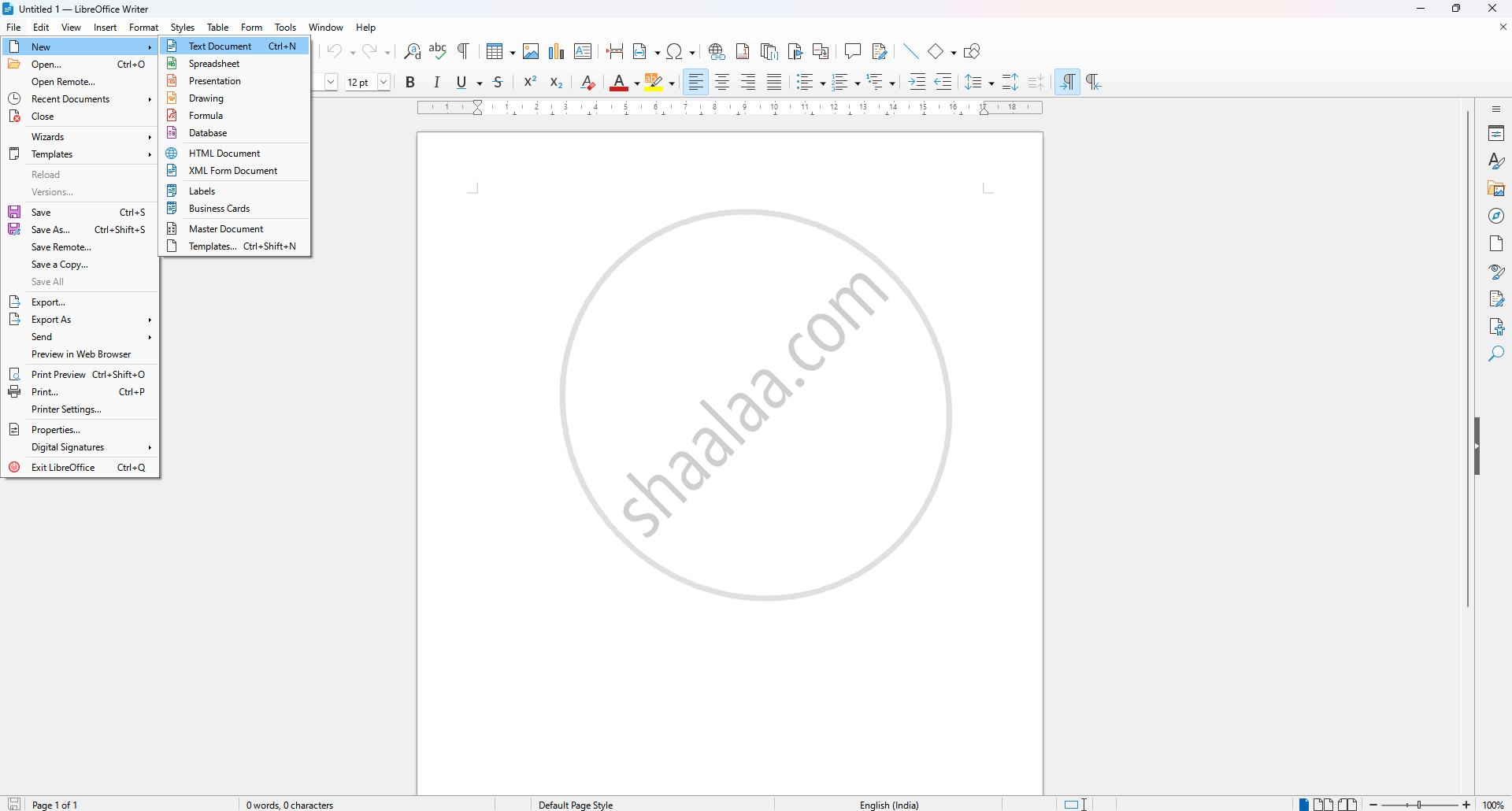
Step 1 : Open the text editor and double-click the Writer icon on the desktop (e.g., OpenOffice Writer or LibreOffice Writer).
Step 2 : A new blank document opens automatically when the text editor launches.
Step 3 : Create a new document by navigating to File → New → Text Document.
- First, click on the "File" menu in the top-left corner of the LibreOffice interface.
-
Then hover over the "New" option.
-
Finally, select "Text Document" from the submenu.
Formatting a New Document
It involves adjusting the appearance and layout of the content to make it more readable, organised, and professional.
Steps for Formatting a New Document in the LibreOffice Tool:
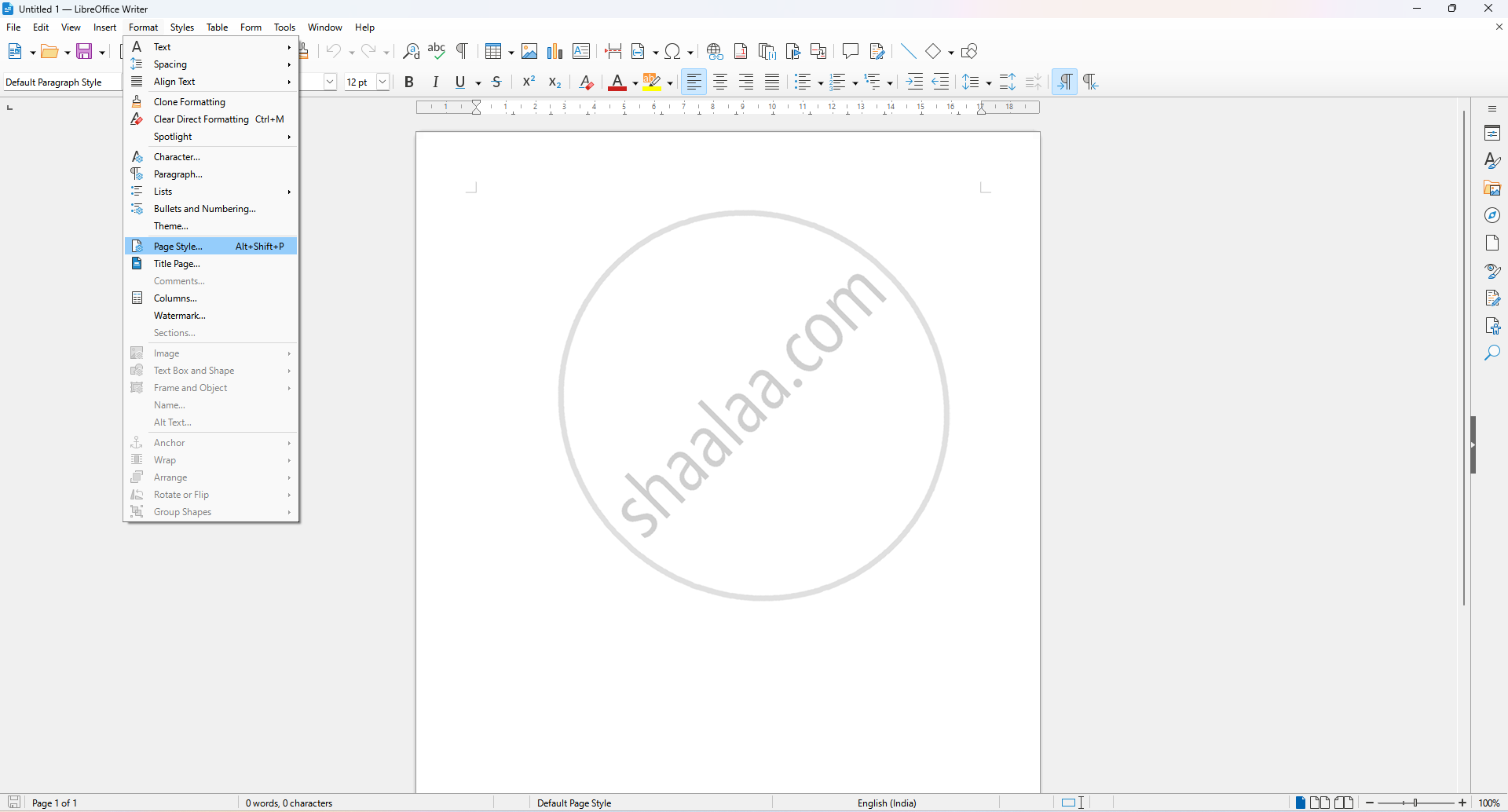


Step 1: Click on Format → Page from the top menu bar. This opens the Page Style dialog box, where you can make layout adjustments.
Step 2: Set Page Properties
1. Choose the desired page size, for example: A4, Letter, etc.
2. Select the Desired Orientation
- Portrait: Vertical page layout.
- Landscape: Horizontal page layout.
3. Adjust the top, bottom, left, and right margins to your desired values (e.g., 2.00 cm or 0.79 inch).
Step 3: Set Background Colour
1. Click the Areatab in the same dialog box.
2. Click the Colour tab under the "Fill" section.
3. Choose the desired colour, e.g., blue, green, yellow etc.
