Topics
Number Systems and Binary Arithmetic
Program Analysis
Introduction to C+ +
- Introduction to C++
- Character Sets
- Standard I/O Strems in C++
- Type Modifiers
- C++ Data Types
- Variables in C++
- Constants
- Compiler Tokens
- Operators in C++
- Comments in C++
- Scope and Visibility
- Control Statements
- Functions in C++
- Default Arguments
- Techniques used to pass Variables into C++ Functions
- Function Overloading
- Inline Functions
- Recursion
- Pointers in C++
- Arrays in Data Structure
- References
- Type Conversion in Expressions
Visual Basic
Introduction to Networking and Internet
- Introduction to Networking Technology
- Networking Terms and Concepts
- Concept of Computer Network
- Network Security
- Network Applications
- Getting started with Vb - Using the IDE
- The Menu Bar
- The Tool Bar and Box
- Toolbox and Property Editor
Getting Started with Vb - Using the IDE
With VB we can create the following types of applications:
1) Standard EXE : It is a typical application
2) Active X EXE , Active X DLL : These types of projects are available with the professional edition. Active X components are OLE automation services. Its components are basic code-building that doesn't have a visible interface and can add special functionality to your applications.
3) Active X Control : An Active X Control such as a text box or a command button control, is a basic element of the user interface
4) Active X Document EXE , Active X Document DLL : Active X documents are VB applications that run in the environment of a container that supports hyperlinking
5) VB Application Wizard , VB Wizard Manager : A wizard is a sequence of windows that collect information from the user and take through the step of setting up the skeleton of new application it let the user build their own wizard
6) Add-In: Add-ins are special commands which can be add to VB's menus user can create there own add-ins for the VB IDE
The Menu Bar

Fig. (4.1) A new Visual Basic Project Screen
The menu bar contains commands. The basic menus are
1) File : It contains commands for opening and saving projects and creating executable files and a list of recent projects.
2) Edit : It contains editing commands, such as copy, paste, undo, and commands for formatting and editing your code, such as Find and Replace.
3) View : It contains commands for viewing.
4) Project : It contains commands that add components to the current project, references to Windows objects, and new tools to the toolbox.
5) Format : It contains commands for aligning the controls on the form
6) Debug : Contains debugging commands
7) Run : Contains commands that start, break, and end execution of the current application.
8) Query : Contains commands that simplify the design of Structured Query Language (SQL) queries.
9) Diagram : Contains commands for editing database diagrams.
10) Tools: Contains tools for building Active X components and controls.
11) Add-Ins : Contains add-ins that you can add and remove as needed.
12) Window : Contains commands to arrange windows on the screen.
13) Help: Contains information to help in your work.
The Project Explorer
It displays the components of the simple projects that are made of a single form The project window is called project explorer because it has the look of window explorer
The Tool Bar and Box
Toolbar
The toolbar gives quick access to commonly used menu commands
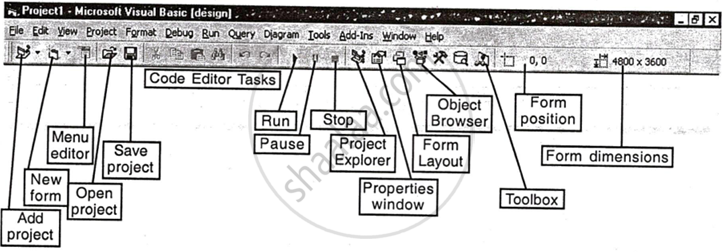
Fig. 4.3: The toolbar
Toolbox
The Toolbox contains the icons of the controls that can be placed on a form to create the application's user interface; it contains user interface and pointer icons and the icons of 20 Active X controls.
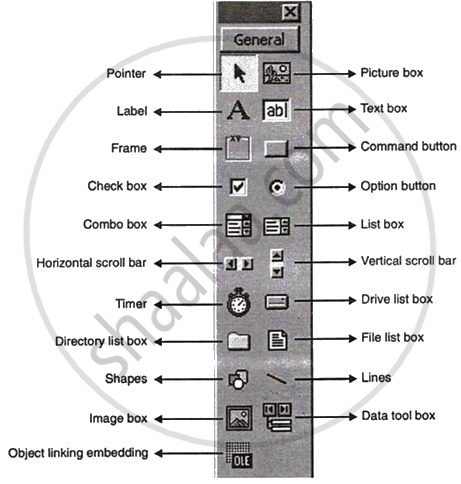
Fig. (4.2) Layout of toolbox
Elements of toolbox
1) Picture Box :
This control is used to display images, and the images are set with the picture property. It supports a number of methods for generating drawings.
2) Label :
This control displays text on a form that the user can't edit. Labels identify other controls. It can set the label's text with the caption property.
3) Text Box :
This control displays text that the user can edit.
4) Frame :
This control is used to draw boxes on the form and to group other elements.
5) Command Button
This is the most common element of the Windows interface. A command button represents an action that is carried out when the user clicks the button.
6) Check Box
It presents choices for the user. Its main property is value. It is 0 if the check box is cleared and 1 if the check box is checked. It is a toggle. Every time it is clicked, it changes status.
7) Option Button
These appear in groups, and the user can choose only one of them. Its main property is checked; it is true if control is checked and false otherwise. It is also a toggle.
8) Combo Box
It contains a list and a text edit field. The user can choose an item from the list and enter a new string in the edit fields.
9) List Box
It contains a list of options from which the user can select one or more. It can contain many lines, and the user can scroll the list to locate an item. The selected item in the list is given by the Text property.
10) The horizontal and vertical Scroll Bars
It let's the user specify a magnitude by scrolling the control's button between its minimum and maximum values
11) Timers
This control is used to perform tasks at regular intervals. If the interval property is set to 10000, the timer control issues a timer event every 10 seconds.
12) File system controls
These are used to add file-handling capabilities to your application.
13) Drive List Box
This displays drives on the system that users can select.
14) Directory List Box
This displays a list of all folders in the current drive.
15) File List Box
This displays a list of all files in the current folders.
16) Shape
This is used to draw graphical elements such as boxes and circles on the surface of the form.
17) Line
It is used to draw lines on a form.
18) Image
It is similar to Picture Box. It can display images.
19) Data
This provides point-and-click access to data stored in databases.
20) OLE
It is used to host documents from other applications, such as MS Word or Excel.
Toolbox and Property Editor
1) The Toolbox
